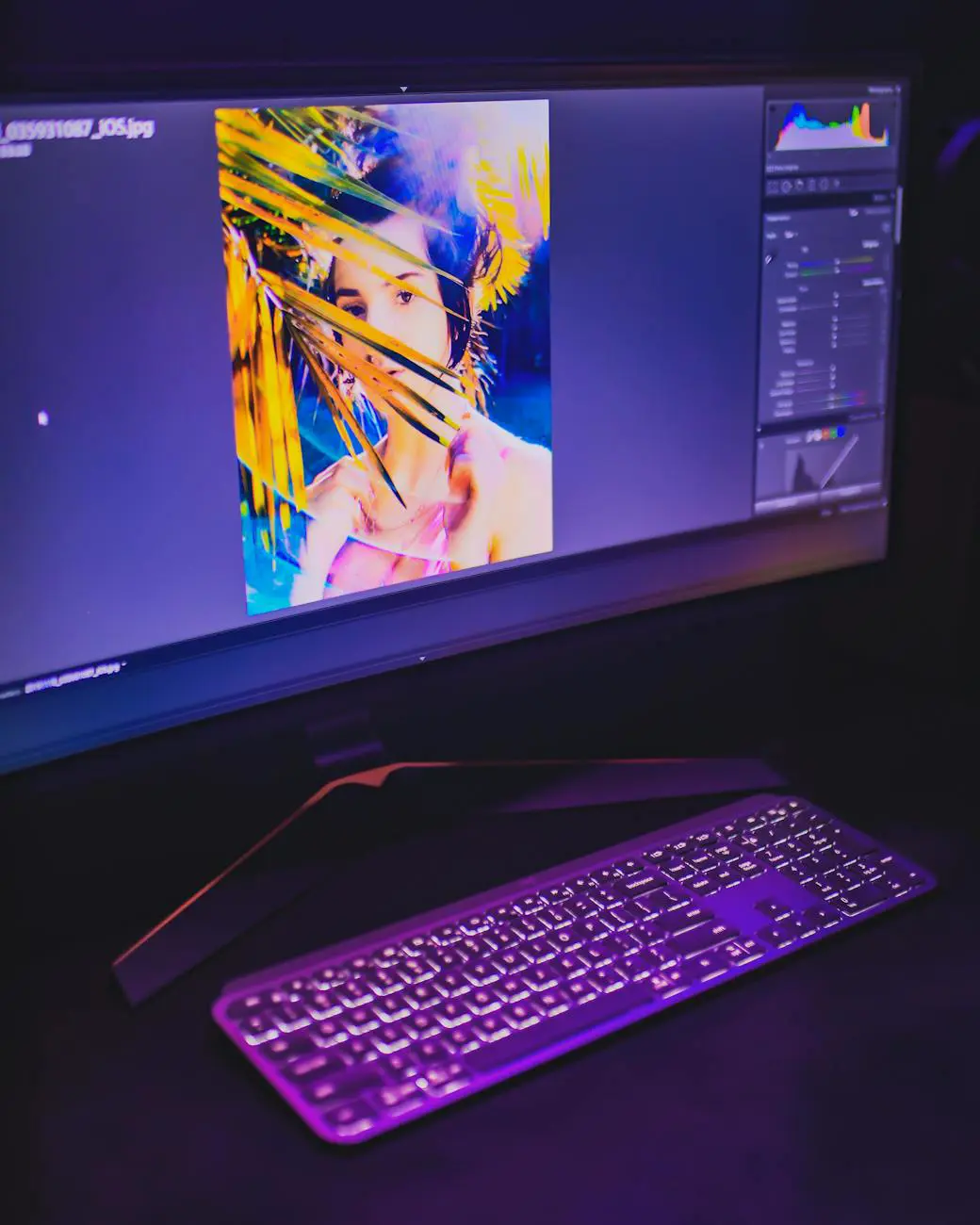
Artificial intelligence has fundamentally transformed the world of photo editing. Complex editing tasks that once took hours can now be completed in seconds with just a few clicks. Background removal, object erasure, image enhancement, and style transfer are now accessible to everyone through both free and professional AI tools. In this comprehensive guide, we explore the best AI photo editing tools of 2026, their features, pricing, and practical workflow tips in detail.
📑 Table of Contents
1. What Is AI Photo Editing?
AI photo editing uses artificial intelligence algorithms — particularly deep learning and computer vision models — to automatically analyze and edit objects, faces, colors, and textures in photographs. Many tasks that previously required manual work in traditional photo editing software have been automated through AI, making professional-quality results accessible to everyone.
💡 Did You Know?
AI photo editing tools use neural networks trained on millions of images. This enables them to perform complex tasks like face recognition, scene detection, object segmentation, and style transfer in just seconds.
Advantages of AI Photo Editing
- Speed: Hours of editing work completed in seconds
- Accessibility: Professional results without requiring expert knowledge
- Consistency: Same quality standard maintained across batch operations
- Cost: Professional results achievable with free tools
- Continuous Improvement: AI models are constantly updated to produce better results
2. Best Free AI Photo Editing Tools
2.1 Remove.bg — The Background Removal Specialist
Remove.bg is a pioneering AI tool designed specifically for automatically removing backgrounds from photos. It is indispensable for e-commerce product photos, profile pictures, and social media content creation.
- Key Feature: Cleanly separates even complex edges like hair strands
- Free Usage: 1 HD download per month, unlimited previews
- Integrations: Photoshop plugin, API access, Zapier support
- Supported Formats: JPG, PNG, WebP
2.2 Cleanup.pictures — The Object Removal Master
Cleanup.pictures is a powerful AI tool that removes unwanted objects, people, text, and watermarks from photos. Simply brush over the area you want to remove, and AI fills it naturally using inpainting technology.
- Key Feature: Natural fill using inpainting technology
- Free Usage: Unlimited at up to 720p resolution
- Use Cases: Real estate photos, product images, portrait editing
2.3 Pixlr AI — Powerful Browser-Based Editor
Pixlr AI is a comprehensive photo editor that runs in the browser and offers multiple AI tools in one platform. It provides background removal, object erasure, photo enhancement, and style filters all in a single interface.
- Key Feature: Layer support for professional editing
- Free Usage: Basic editing tools and limited AI features
- Additional Features: Template library, batch resizing
2.4 Canva Magic Edit — Design Meets Editing
Canva's Magic Edit feature lets you replace objects in photos using text commands. It works with natural language prompts like "replace this object with a flower" and accelerates your design workflow significantly.
- Key Feature: Text-based object replacement and addition
- Free Usage: Basic Magic Edit available on free plan
- Integration: Full compatibility with Canva's design ecosystem
2.5 Snapseed — Mobile AI Photo Editing
Google's free photo editing app Snapseed delivers professional editing capabilities on mobile devices. It stands out with AI-powered auto-enhance, selective editing, and HDR effects that rival desktop solutions.
- Key Feature: 29+ tools and filters, completely free, ad-free
- Platform: iOS and Android
- RAW Support: Directly edit DNG files
3. Professional AI Photo Editing Tools
3.1 Adobe Photoshop AI / Firefly
Adobe has redefined the photo editing standard by integrating its Firefly AI engine into Photoshop. Features like Generative Fill, Generative Expand, and Neural Filters take professional editing to an entirely new dimension.
Adobe Photoshop AI Key Features
- Generative Fill: Fill selected areas with text prompts — add, replace, or remove objects
- Generative Expand: Extend photo boundaries with AI-generated content
- Neural Filters: Change facial expressions, style transfer, color toning
- Sky Replacement: Automatically detect and replace skies
- Object Selection: One-click object selection with AI
- Content-Aware Fill: Advanced inpainting for natural results
3.2 Luminar Neo — AI Built for Photographers
Skylum's Luminar Neo offers AI tools specifically designed for photographers. With features like Portrait Bokeh AI, Sky AI, Relight AI, and Structure AI, it delivers powerful results especially in landscape and portrait photography.
- Portrait Bokeh AI: Professional portraits with artificial depth-of-field effect
- Sky AI: Realistically replace skies (500+ sky options)
- Relight AI: Reorganize the lighting of your photos
- GenErase: Clean up objects with AI
- Lightroom/Photoshop Plugin: Integrate into your existing workflow
3.3 Topaz Photo AI — The Quality Enhancement Expert
Topaz Photo AI is the industry leader in transforming low-quality photos into high-resolution images. It produces unmatched results in noise reduction (Denoise), sharpening (Sharpen), and resolution enhancement (Upscale).
- Upscale: Enlarge photos up to 6x without losing detail
- Denoise: Remove ISO noise while preserving details
- Sharpen: Sharpen blurry photos (including motion blur)
- Face Recovery: Reconstruct low-resolution faces
- Autopilot: Automatic analysis and optimal settings recommendation
⚠️ Warning
Professional AI tools require a powerful GPU. Adobe Photoshop AI needs at least 8GB VRAM, while Topaz Photo AI recommends NVIDIA RTX series cards. Without a GPU, processing times can increase significantly.
4. Feature Comparison Table
5. Key Features in AI Photo Editing
5.1 Background Removal
AI background removal uses semantic segmentation to separate the foreground subject (typically a person or product) from the background. Modern AI models can successfully handle hair strands, semi-transparent objects, and complex edges. It is the most widely used AI feature in e-commerce, social media, and professional portrait work.
5.2 Object Removal
AI inpainting technology predicts what should be behind a removed object and fills the area naturally. Power lines, unwanted people, watermarks, and distracting objects can be easily cleaned up. Generative AI models produce realistic results by considering texture, lighting, and perspective.
5.3 Upscaling (Super Resolution)
AI upscaling transforms low-resolution images into super-resolution outputs. Deep learning models like ESRGAN and Real-ESRGAN add detail to pixelated images, enabling 2x, 4x, and even 6x enlargement. It is ideal for restoring old photos and achieving print-quality output from digital images.
5.4 Color Correction
AI color correction automatically optimizes the overall tone, white balance, saturation, and contrast of a photo. It detects the scene type (portrait, landscape, night, etc.) and applies the most appropriate color profile. This ensures consistent results across batch editing workflows.
5.5 Style Transfer
Neural style transfer applies the style of another image or artwork to a photo. Options include Van Gogh oil painting effects, anime style, sketch effects, and vintage filters for creating unique content. It is popular for social media content and artistic projects that need a distinctive visual identity.
6. Step-by-Step Tutorials
Background Removal with Remove.bg
- Step 1: Visit remove.bg and click the "Upload Image" button
- Step 2: Upload your photo — AI automatically detects and removes the background
- Step 3: Use "Edit" for fine-tuning — edge smoothing, background color selection
- Step 4: Optionally add a new background photo or solid color
- Step 5: Click "Download" to save the transparent-background image as PNG
Using Photoshop Generative Fill
- Step 1: Open your photo in Photoshop
- Step 2: Use selection tools (Lasso, Quick Selection, etc.) to select the area you want to edit
- Step 3: Click "Generative Fill" in the Contextual Task Bar
- Step 4: Type what you want in the text box (e.g., "tropical beach background") or leave empty to remove the object
- Step 5: AI generates 3 different variations — choose your favorite and confirm
Photo Enhancement with Topaz Photo AI
- Step 1: Open Topaz Photo AI and drag-and-drop your photo
- Step 2: Autopilot performs automatic analysis — detects noise, blur, and resolution issues
- Step 3: Review suggested improvements and adjust parameters as needed
- Step 4: Check results with preview — compare before/after side by side
- Step 5: Click "Export" to choose output format and quality, then save
7. Batch Processing and Workflow Tips
When working with large photo collections, batch processing capabilities are a lifesaver. Here are the most efficient workflow tips:
Organize First
Sort photos into folders by type: portraits, products, landscapes. Each type may require different AI settings for optimal results.
Use Presets
Create custom presets in Luminar Neo and Topaz Photo AI for consistent results. Configure once, apply to entire collections automatically.
API Integration
Build your own automation with Remove.bg and Photoroom APIs. Change backgrounds of hundreds of product photos in minutes.
Quality Control
Always spot-check results after batch processing. AI can sometimes make errors with complex scenes or unusual compositions.
💡 Pro Tip
Combine Photoshop Actions with AI features to create your own automated workflows. For example: Open photo → Auto Tone → Neural Filter (portrait enhancement) → Upscale → Export. This workflow can be automatically applied to hundreds of photos.
8. Pricing Comparison Table
9. Frequently Asked Questions (FAQ)
Can AI photo editing tools replace professional photographers?
No, AI tools don't replace professional photographers and graphic designers — they make their work easier. By automating repetitive tasks, AI allows creatives to spend more time on artistic decisions. Complex retouching, artistic judgment, and creative vision still require human expertise and artistic sensibility.
Can free AI tools be used for commercial projects?
Most free AI tools allow commercial use, but it's important to check each tool's licensing terms. Remove.bg and Canva permit commercial use on their free plans, while some tools restrict free tiers to personal use only. Since copyright issues with generative AI-created content are still evolving, caution is advised for commercial applications.
Which AI tool offers the best background removal performance?
For background removal alone, Remove.bg delivers the best results — including hair strands and complex edges. However, if you need a comprehensive solution, Adobe Photoshop AI's Object Selection + Generative Fill combination offers more control. For e-commerce batch operations, the Remove.bg API is the most efficient option available.
Can AI rescue low-resolution old photos?
Yes! Topaz Photo AI produces the best results for this purpose. Its Face Recovery feature can reconstruct low-resolution faces, Denoise cleans up film grain, and 6x upscale dramatically increases resolution. As a free alternative, the Remini app also produces impressive results for old photo restoration.
What is the best AI photo editing tool for beginners?
For beginners, Canva Magic Edit and Snapseed are the best choices. Canva makes editing extremely easy with its intuitive interface and text-based commands. Snapseed offers a completely free, ad-free, and powerful editing experience on mobile devices. Both tools allow you to achieve professional results without requiring any technical knowledge.
Conclusion
In 2026, AI photo editing tools are more powerful and accessible than ever. While free tools produce sufficient results for everyday use, professional tools offer unlimited creative possibilities. Choosing the right tool for your needs will dramatically speed up your workflow and improve photo quality. Starting with free tools and transitioning to professional solutions as needed is the smartest strategy for photographers and content creators alike.