What Is Two-Factor Authentication?
Two-factor authentication (2FA) is a security mechanism that adds a second verification layer when accessing your online accounts, rather than relying solely on your password. In an era where cyberattacks are becoming increasingly sophisticated, using a strong password alone is no longer sufficient. 2FA requires a combination of something you know (your password) with something you have (a phone or hardware key) or a biometric identifier.
Billions of user credentials have been exposed in data breaches worldwide. The passwords obtained from these breaches are tried by attackers across different platforms in a technique known as credential stuffing. When 2FA is enabled, even if an attacker knows your password, they cannot access your account because they lack the second verification factor.
Why Is 2FA So Important?
Cybersecurity research demonstrates that accounts protected by 2FA are over ninety-nine percent more resistant to unauthorized access. This statistic clearly illustrates how critical the second verification layer truly is.
- Protects against password breaches. Even if your password is compromised, your account remains secure without the second factor.
- Reduces the effectiveness of phishing attacks. Even if you enter your password on a fake website, the attacker cannot obtain the second factor.
- Neutralizes brute force attacks. Even if a password is guessed, additional verification is required.
- Allows you to immediately detect account takeover attempts. Unexpected verification requests serve as an alert.
- Meets corporate compliance requirements. Many regulations and standards mandate the use of 2FA.
2FA Methods and Comparison
SMS-Based Verification
SMS-based verification is the most commonly used 2FA method. When logging into your account, you are asked to enter a one-time code sent to your mobile phone via text message. It is easy to set up and does not require any additional applications.
However, SMS-based verification has significant security vulnerabilities. SIM swapping attacks can transfer your phone number to another SIM card. Security flaws in the SS7 protocol can allow messages to be intercepted. Additionally, your phone number can be stolen or information obtained from your carrier through social engineering tactics.
SMS verification is better than using no 2FA at all, but transitioning to more secure methods is strongly recommended whenever possible.
Authenticator Applications (TOTP)
Authenticator applications use the Time-based One-Time Password (TOTP) algorithm to generate a new code every thirty seconds. Popular applications in this category include Google Authenticator, Microsoft Authenticator, Authy, and Aegis.
The TOTP method offers significant advantages over SMS verification. Because codes are generated locally on your device, they cannot be intercepted over the network. It does not require an internet connection and is unaffected by SIM swapping attacks. Setup is quick and practical through QR code scanning.
There are important considerations when choosing an authenticator application. Authy and Microsoft Authenticator offer cloud backup, ensuring you do not lose your codes when changing devices. Google Authenticator takes a more minimalist approach. Open-source alternatives such as Aegis for Android and Raivo for iOS are ideal choices for privacy-focused users.
Hardware Security Keys (FIDO2/WebAuthn)
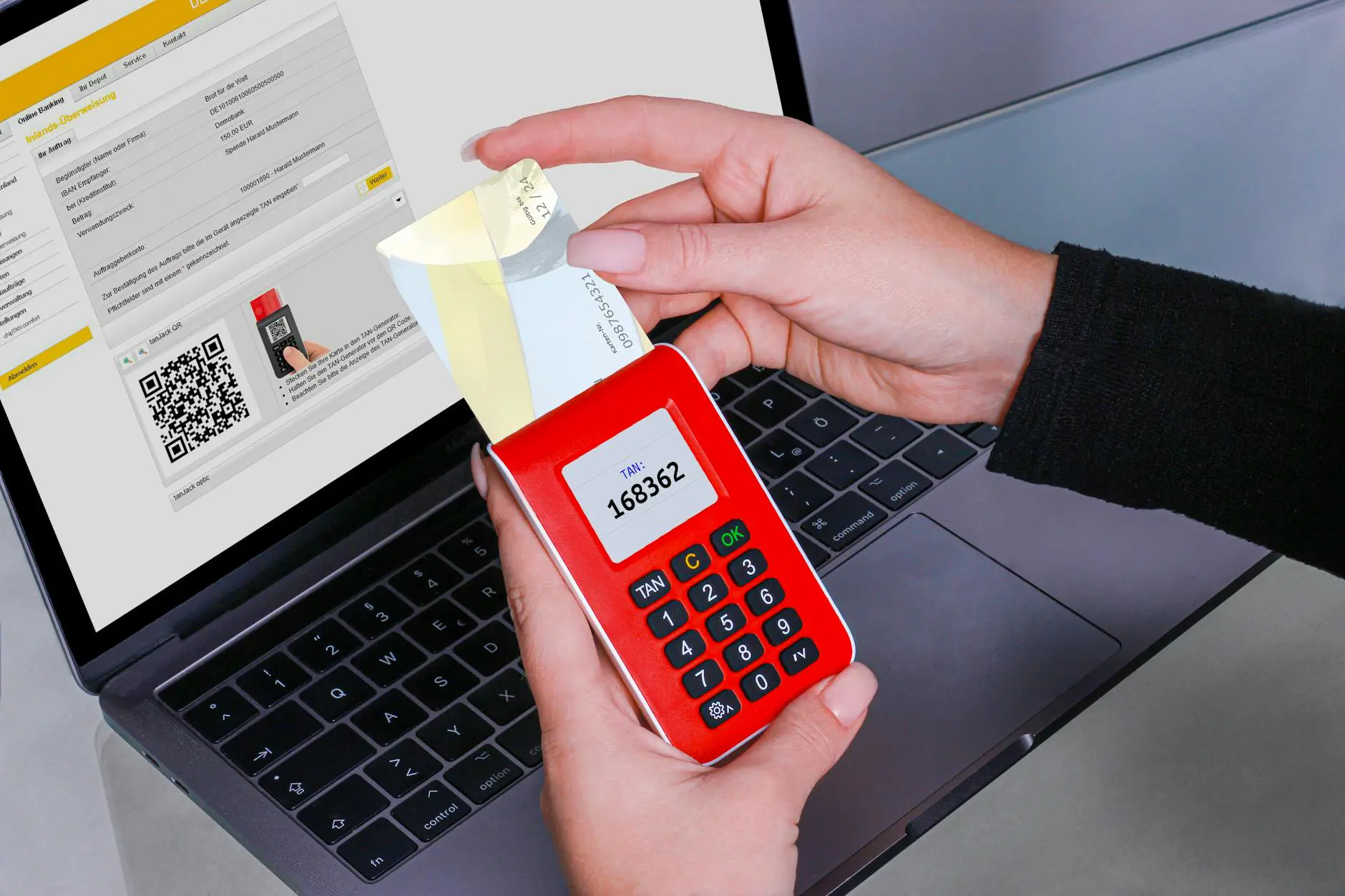
Hardware security keys are considered the most secure option among 2FA methods. Physical devices such as YubiKey, Google Titan, and SoloKeys connect to your computer or phone via USB, NFC, or Bluetooth and perform cryptographic verification.
The greatest advantage of this method is its complete protection against phishing attacks. The hardware key automatically verifies whether the website you are connecting to is genuine. Even if you are redirected to a fake site, the key will refuse the authentication process.
- Provides the strongest protection against phishing attacks.
- Cannot be remotely compromised since physical possession is required.
- Requires no batteries and operates reliably for years.
- Compatible with multiple accounts and platforms.
- Keeping a backup key is recommended because losing your key can make account access difficult.
Passkey Technology
Passkey is a next-generation authentication technology based on the FIDO2 standard that represents the transition to a passwordless future. Supported by Apple, Google, and Microsoft, this technology aims to completely eliminate traditional passwords.
When a passkey is used, a cryptographic key pair is created on your device. The private key is securely stored on your device while the public key is shared with the service provider. During login, your private key is used through biometric verification such as fingerprint or facial recognition.
The advantages of passkey technology include eliminating the need to remember passwords, natural immunity to phishing attacks, and cross-device synchronization capabilities. However, not all platforms and services currently offer passkey support.
Security Comparison of 2FA Methods
Let us evaluate different 2FA methods in terms of security, ease of use, and accessibility.
- Hardware keys offer the highest security but require additional cost and must be physically carried.
- Passkey technology provides high security and ease of use but does not yet have universal support.
- Authenticator applications deliver a good level of security, are free, and are widely supported.
- SMS verification provides basic security, is the easiest method to set up, but has known security vulnerabilities.
How to Enable 2FA
Google Account
To enable 2FA on your Google account, navigate to myaccount.google.com. Click on the Security tab in the left menu. Find the Two-Step Verification option under the Signing in to Google section. Click the Get Started button and verify your phone number. Then you can add an authenticator application or security key to choose a more secure method instead of SMS.
Social Media Accounts
Facebook, Instagram, X (formerly Twitter), LinkedIn, and other social media platforms all offer 2FA support. Typically, you can enable two-factor authentication by going to the Settings menu and then navigating to the Security or Privacy section. On all these platforms, choosing the authenticator application option is recommended.
Email and Business Applications
Enabling 2FA on Microsoft 365, Slack, Zoom, and similar business applications is critically important. In corporate environments, administrators can typically enforce 2FA requirements for all users. Using a security key or authenticator application for these services is strongly advised.
Safely Storing Backup Codes
When you enable 2FA, service providers typically offer backup recovery codes. These codes allow you to access your account when you cannot reach your 2FA device. Storing your backup codes securely is vitally important.
- Write the codes on paper and store them in a secure location. Storing them digitally can pose risks.
- Keep your backup codes in an encrypted password manager.
- Create multiple copies and store them in different physical locations.
- Never keep your backup codes as screenshots on your phone.
- Replace used backup codes with new ones immediately.
Common Mistakes and Important Considerations
Certain common mistakes made when using 2FA can compromise your security. Being aware of these mistakes and taking precautions is essential.
Relying solely on SMS verification is one of the most common errors. Wherever possible, switch to an authenticator application or hardware key. Failing to obtain or losing backup codes is another frequently encountered problem. Save your backup codes securely the moment you enable 2FA.
Using the same 2FA method for all accounts can also be risky. Adopt a layered approach such as hardware keys for critical accounts and authenticator applications for others. Failing to back up your authenticator application can result in losing all your codes when changing phones.
Security is about striking the right balance between convenience and risk. 2FA requires a little more effort, but the protection it provides is well worth that effort.
Implementing 2FA in Corporate Environments
For businesses, 2FA is no longer optional but a necessity. The vast majority of corporate data breaches originate from stolen or weak credentials. Follow these steps to establish a comprehensive 2FA policy.
- Mandate 2FA for all employees and document this policy in writing.
- Require hardware security key usage for administrator and privileged accounts.
- Provide regular 2FA training for employees and build awareness.
- Establish backup access procedures and test them periodically.
- Audit your 2FA implementation regularly and update policies according to current threats.
The Future of 2FA
Authentication technologies are evolving rapidly. The widespread adoption of passkey technology, advances in biometric verification, and the embrace of zero-trust architectures all point toward a future where passwords may be entirely eliminated.
However, during this transition period, 2FA will continue to be a cornerstone of digital security. Enabling 2FA today is the first step toward preparing for tomorrow's passwordless world. Regardless of which method you choose, it is absolutely more secure than using no 2FA at all. Take action today to protect your accounts.